


Siaviala S6 15.6 inch Tri Screen Laptop Extender Extra Two Screen DIY Detachable WorkStation
Triple Your Screen. Triple Your Output.
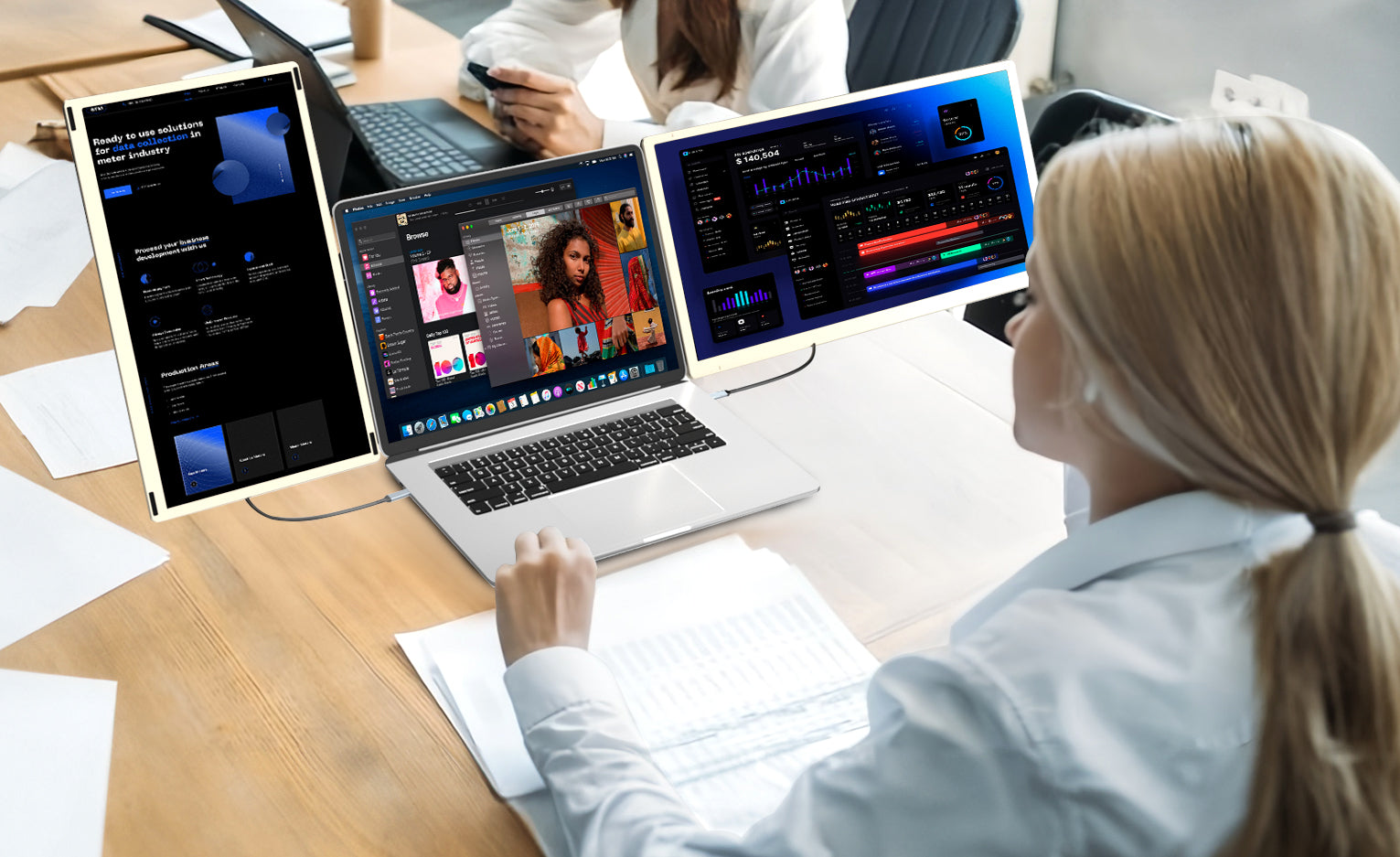
Siaviala S6 isn't just extra two screens, it's a complete workstation. It can be either a powerful triple display for unparalleled productivity or split into two standalone 15.6" monitors to share with a colleague, revolutionizing collaborative and individual work.
Key Features:
11+ DIY Configurations: key point!
Universal Laptop Clip: Securely attaches to 13"-19" laptops in seconds
Efficiency Boost: Open 3 full pages at once, no more window switching
Plug & Play Setup: Connect instantly via USB-C or HDMI, no drivers needed
Wide Compatibility: Works with Win/Mac, Android phones, Switch, PS4, and Xbox
Perfect For:
Professionals, Programmers, Content Creators, Traders, Remote Workers, Students, Gamers, Entertainment


Jump to your preferred Amazon store ×
| Screen Size | 15.6 inch |
|---|---|
| Resolution | 1920*1080 |
| Aspect Ratio | 16:9 |
| Refresh Rate | 60Hz |
| Mountable on Laptop | DIY Detachable Display |
| Response Time | 35ms |
| Brightness | 300 nits |
| Contrast Ratio | 1000:1 |
| Viewing Angle | 90°+235°+360° |
| Color Gamut | NTSC 80% |
| Connections / Ports | TYPE-C*4+USB C with DP*2 |
| Audio | 2 Speakers |
| Power Supply | No |
| Product Dimensions (cm) | 36x21.66x4.5 |
| Net Weight (kg) | 2.39 |
| Packaging Dimensions (cm) | 40.7x10.7x26.5 |
| Gross Weight (kg) | 4.15 |
If you’re not completely satisfied with your purchase from siaviala.com, you can return it for a replacement, exchange, or refund at any time within 30 days of purchase. Read our return policy here.
Get lifetime access to dedicated customer care — including personalized support from Siaviala at sales@siaviala.com
Download your S6 manual anytime for quick reference.
Download S6 User Manual [PDF]
Download S6 Beginner's Guide[PDF]
QUALITY & INNOVATION
Coolest Extender
Unique 15.6-inch design, stylish metal and carbon fiber finish lets you position and rotate screens with ease, providing flexibility that most monitors can't match. You can even travel light with two monitors in one. Upgrade your workspace wherever you go!
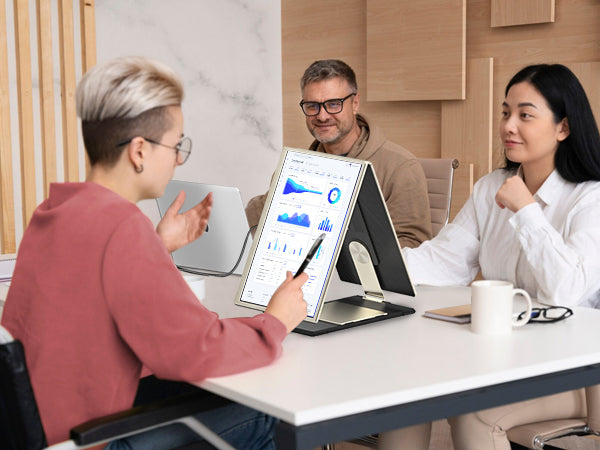


Mirror Your Laptop

Mirror your Phone

Mirror Your Tablet


For 13-17.3" Laptops
The stretchable design allows the monitor extender to reach a maximum length of 405mm/15.9 inches, suitable for 13-17.3" laptops.

Magnetic Cover
Screens are equipped with Magnetic Cover for easy protection, ensuring they remain scratch-free and ready for action. You can set up in seconds and focus on what matters most—your work!

Portable Design
The ultra slim and lightweight design makes it perfect for transportation. Take the portable monitor in the storage bag to create your personal laptop workstation wherever you go.


How To Connect Your Device
USB-C Connection:
If your laptop has 2 fully functional Type-C ports, use 2 Type-C cables to connect the extender. Type-C data cable should be plugged into two ports labeled "Type-C" on the back of the monitor, not ports labeled "HDMl".
HDMI + USB-A Connection:
If your laptop has only one fully functional Type-C port, connect one monitor with a Type-C cable and the other with the HDMl cable and the USB A cable.
Note: When connecting the HDMI to USB-C cable, make sure you have connected the HDMI to USB-C cable insert in the port labeled "HDMI" on the back of the monitor.

Frequently Asked Questions
| Compatibility | Compatible with Intel, AMD, ARM, Android, Windows, Mac,M1,M2, M3, Chrome, Linux, Type-C phones, PS4, Xbox, Switch, M1 Pro/Max, M2 Pro/Max, |
| Displays "No Signal" | If it is USB-C to USB-C connection, make sure the type-c port on your laptop is a full-featured and is plugged into the right port (TYPE-C1 & TYPE-C2 marked) on the the Siaviala laptop screen extender. If it is HDMI + USB-A connection, make sure the HDMI-to Mini HDMI cable is plugged into the the right port (HDMI marked) on the Siaviala laptop screen extender. |
| Not light up after connecting | Please charge the screen extender with an additional 5V/2A power supply. |
| Screen Flickers & Black Screen | It means your laptop is low battery or voltage is insufficient, use an extra USB-A to USB-C cable to power your laptop or the monitor extender. |
Product Comparison
Compare products side by side


Swipe or use arrows to scroll horizontally